
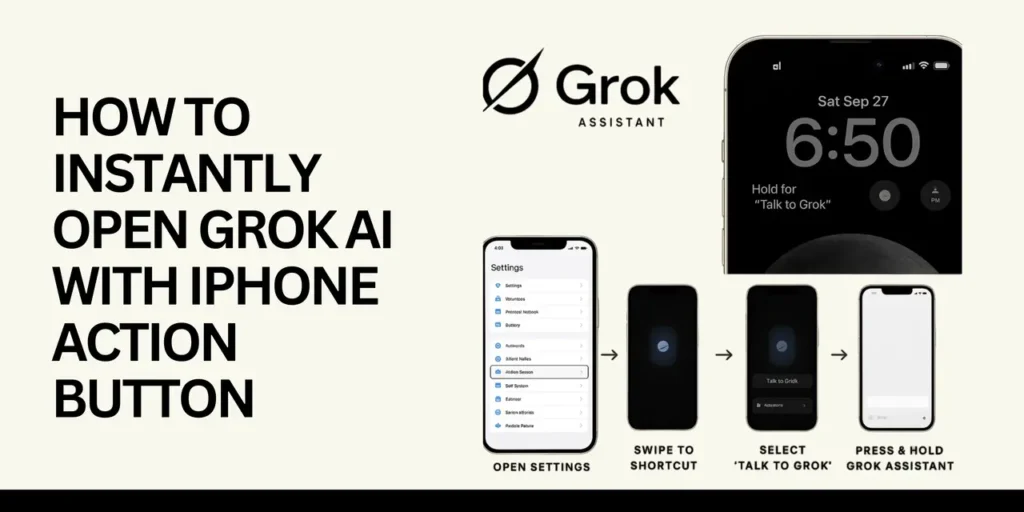
The Action Button on iPhone has given users new ways to customise, and users have discovered an effective method to configure it to start Grok AI immediately. It’s Elon Musk’s artificial assistant.
It’s a game-changer because it’s true that Siri has been in a rut for many years. While Siri has trouble with simple queries and commands that aren’t as powerful, Grok AI delivers real-time answers, web-based searches, and natural-sounding conversations, which seem like the future of personal assistants.
If you’ve ever dreamed of having an all-in-one AI assistant for your iPhone, this guide will explain exactly how to setup Grok AI iPhone Action Button.
Key Takeaways – You can bypass Siri and gain access to a more intelligent and more powerful AI assistant right from the lock screen, or from any app through the assignment of Grok AI to the iPhone’s Action Button.
What is Grok AI?
Grok AI is an advanced conversational AI assistant designed by Elon Musk’s business XAI. In contrast to Siri, which is frequently felt inadequate, Grok is designed to give real-time, relevant responses, conduct online searches quickly and engage in natural human-like conversations. Grok can be used to handle a broad variety of tasks, including translations as well as research and summarisation, which makes it a more intelligent and more adaptable personal assistant that can be used for daily use.
Why Grok AI Instead of Siri?
Apple’s Siri has been available since 2011. It hasn’t really changed significantly compared to the rapid development of AI assistants in recent years.
Here’s how Grok stands out:
- Real-time Intelligence: Unlike Siri, Grok can understand the context and give dynamic responses instantaneously.
- Automatic Web Search: There is no necessity to start Safari; Grok fetches fresh information in real time while you talk.
- Conversational AI: Grok is designed to communicate naturally, with no robot-like responses.
- Multitasking support: From answering queries to rewriting documents or aiding in the research process, Grok is far more flexible.
In short: Siri feels like 2011. Grok feels like 2025.
How to Set Grok AI iPhone Action Button : Step-by-Step Guide
Take the following steps to make Grok your go-to AI assistance with just one click on the action Button:
1. Open iPhone Settings
Go to the Settings app from your home screen.
2. Find the Action Button Menu
Scroll down until you reach the Action Button and tap the button. This feature allows you to assign shortcuts as well as functions to the action button located on the right side of your iPhone (available in iPhone 15 Pro and newer).
3. Select “Shortcut” Option
You can swipe through the choices until you come across a shortcut. It lets you assign any shortcut to an automation or application.
4. Choose a Shortcut
Tap to create a shortcut.
5. Search for the Grok App
Search for Grok in the search box. Make sure that you have the most recent version of the Grok application installed on your device.
6. Assign “Talk to Grok”
From the shortcut actions, choose “Talk to Grok”. This will immediately launch Grok AI whenever the button is hit.
7. Test It
Hold and press your Action Button → Grok will open instantly. Now you’re ready to talk with Grok, ask questions, or let Grok retrieve information for you.
Done! You now have Grok set up as your instant AI assistant on iPhone.
When and Where Can You Trigger Grok?
One of the major benefits of this setup is the fact that Grok can be activated from nearly any place:
- Security Screen: It is not necessary to type or unlock; simply press your Action Button.
- Inside Applications: No matter if you’re browsing, emailing, or working, Grok shows up immediately.
- On-the-go: Are you in need of a quick translation, fact-check, or reminder? Just one press can do it.
This is what makes Grok an actual system-level assistant – something Apple isn’t allowing natively when using third-party AI applications.
Best Practices for Using Grok with Action Button
For the most enjoyable experience, keep these guidelines in mind:
- Update the Grok App: New features and updates are released often.
- Create your own custom Grok: Learn it to suit your personal preferences, style or needs of the job for faster responses that are more specific to you.
- Combining Shortcuts: Power users can make multiple-step shortcuts (e.g., “Talk to Grok” and copy the last cut-board’s content).
- Battery awareness: The reason for this is that AI apps can run background processes. Be sure that Low Power Mode is turned off in the event that you require Grok running at full speed.
Why Apple Restricts Assistants (Why This Shortcut Wins)
Apple cannot allow users to substitute Siri with a third-party assistant as a default. This means that even the more powerful Grok, Google Assistant, or Alexa are more powerful, you aren’t able to create them as their “Hey Siri” replacement.
However, this Action Button + Shortcut hack is the most efficient and most reliable method to overcome the limitation. Just one press, Grok becomes your real assistance, no complicated menus, and no more taps.
Troubleshooting Common Issues
If Grok isn’t launched after pressing the button:
- Make sure that the shortcut is correctly assigned to the correct shortcut setting in the Action Button settings.
- Check that the Grok application is running and up-to-date.
- Reboot your iPhone if the shortcut does not activate.
- Create the shortcut again if you need to.
The majority of users report that it functions flawlessly after the initial setup.
My Final Thoughts
Apple might be trying to catch up in the world of AI; however, because of the iPhone Action Button, you aren’t waiting for Siri to develop. By using Grok AI on your phone, you’re carrying a more intelligent, real-time assistant within your pocket, available instantly just by pressing.
If you’re frustrated by Siri’s limitations, this shortcut is worth a try. Once you’ve mastered Grok, taking care of your queries as well as web searches and other tasks, you’ll be wondering what you could have done with Siri at all in the first place.
Install an account for your Grok AI iPhone Action Button and discover the future of personal assistants using your iPhone today.
FAQs on Setting Up Grok AI with the iPhone’s Action Button
1. What is the iPhone Action Button?
The Action Button is a customizable button that is available on the iPhone 15 Pro and newer models. You can assign various actions, such as shortcuts, apps, features, or even apps, to make it easy to access.
2. Can I change Grok AI to be the default assistant in place of Siri?
The answer is no, Apple doesn’t allow replacing Siri as the assistant that runs across the system. But, using an Action Button hack, you can activate Grok immediately, and it will feel like your own personal agent.
3. Do I require the most recent iPhone for this feature?
Yes, there is a way you can use. The Action Button is currently available on the iPhone 15 Pro and newer models. The older iPhones don’t come with this feature.
4. Is the Grok application available for free on the iPhone?
Grok provides a basic version; however, the more advanced features might require subscriptions as well as SuperGrok access, based on the plan you select.
5. Do I have to use Grok directly via the screen of the lock?
Yes. Once you’ve set it up, pressing the Action Button from the lock screen will open Grok immediately, without having to unlock your phone.
6. Does Grok work in the offline world?
No. Grok needs an Internet connection to access live answers in real-time and to perform web-based searches.
7. Can Grok replace Siri for voice commands like “Hey Siri”?
At the moment, it’s not available. Apple does not allow third-party assistants to use their wake word system. The Action Button is the best solution.
8. Can the setting Grok to the Action Button affect my battery lifespan?
Running Grok could use much more power and battery capacity than Siri, particularly if background processes or searches are in operation. Using the Low Power Mode may limit its performance.
9. Do I have the ability to assign multiple shortcuts using Grok in the Action Button?
Yes. Advanced users can use shortcuts to chain, such as taking clipboard text and transmitting the text to Grok.
10. Is Grok secure and private to use?
Yes. Grok is a part of xAI’s security policy; however, as with any AI assistance, your requests could be processed by the cloud. Be sure to review the privacy guidelines.