
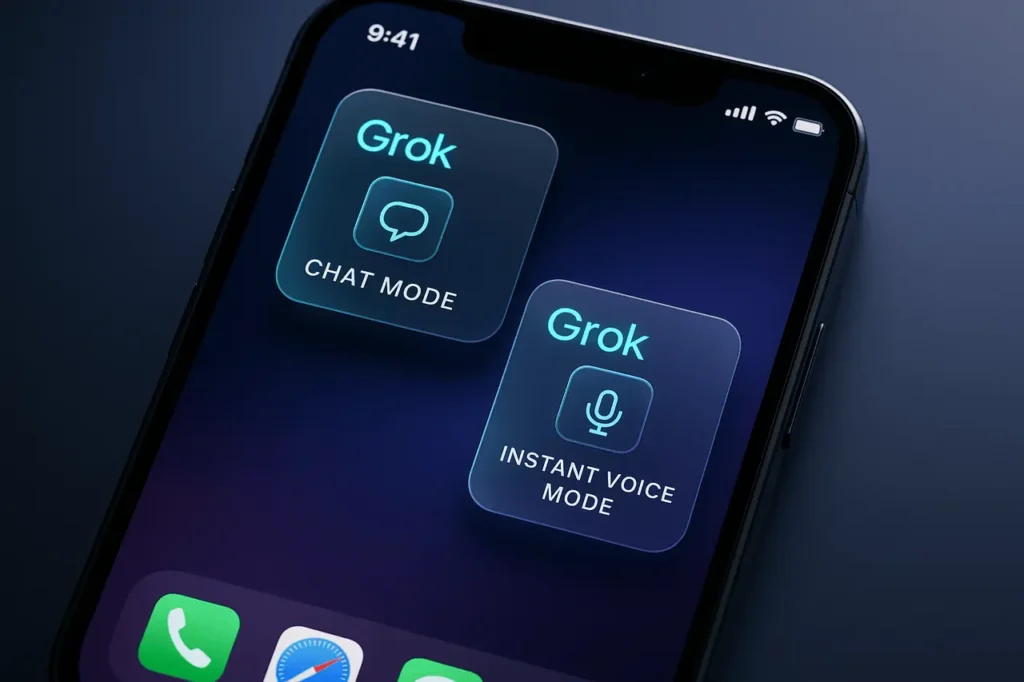
Grok the conversational AI from xAI now makes it easy to keep both text chat and instant voice access on your phone by letting you add separate Grok widgets to your Home Screen. That means one tap for a typed chat and one tap for a voice experience that listens and replies, without hunting through the app.
This guide explains what the Grok widget does, how to add two widgets (one for chat mode and one for instant voice mode), device-specific steps, useful tips, and answers to common questions. All claims below are checked against official sources and practical user guides.
What is Grok?
Grok is an advanced AI assistant designed by xAI to respond to questions, engage in natural conversations, and provide instant information via speech and text. Grok is intended to be quick and conversational. It can also be helpful in everyday tasks, like other AI chatbots, focused on real-time reasoning and dynamic voice interactions.
Why use 2 Grok Widgets?
Placing two Grok widgets gives you two single-tap entry points to Grok’s different interaction modes:
- Chat widget — opens Grok in text/chat mode for longer queries, code, or multi-step thinking.
- Voice widget — launches Grok’s instant voice/voice-chat flow so you can speak naturally and receive spoken responses.
This arrangement reduces friction: instead of opening the app and switching modes, you choose the interaction form you want right from your Home Screen. xAI promotes Grok as a mobile-first assistant with voice capabilities, and app listings show voice chat as a core feature—so widgets are a natural extension of that functionality.
What you’ll need?
- A smartphone with the Grok app installed (iOS App Store or Google Play). If you don’t have the app, download it from your device’s store first.
- Basic familiarity with adding widgets on your OS (instructions below). Official app pages and device support docs make this straightforward.
Step-by-step: Add 2 Grok Widgets (iPhone / iPad)
iOS supports multiple widgets for the same app. You can add one Grok widget sized for quick text and another sized or configured to trigger voice. Follow Apple’s Home Screen widget flow:
- Long-press an empty area of the Home Screen until icons jiggle.
- Tap Add Widget (or the + button).
- Scroll or search for Grok in the widget list.
- Select the widget style/size you want. (Third-party widgets often come in small/medium/large; choose two that match your layout.)
- Tap Add Widget to place the first Grok widget, then tap Done.
- Repeat the process to add a second Grok widget. You can arrange them beside each other or create a stack if you prefer.
- If Grok’s widget has configuration options (e.g., “Open in voice mode”), long-press the widget and choose Edit Widget to set it. If the widget doesn’t provide direct configuration, placing two copies still works if the app remembers the widget’s purpose or if Grok exposes quick actions via long-press.
Tip: iOS supports widget stacks, if you want a compact layout, you can stack two identically sized Grok widgets and swipe between them. Apple’s docs explain stacking and Smart Rotate.
Step-by-step: Add 2 Grok Widgets (Android)
Android widget behavior varies by manufacturer and launcher, but core steps are standard:
- Long-press the Home Screen and tap Widgets or Add widgets.
- Find Grok in the widgets list.
- Drag one Grok widget to your Home Screen and place it where you want.
- Repeat to add a second Grok widget. If the widget offers configuration during placement (size, action), choose Chat for one and Voice for the other if options exist. Otherwise, check long-press quick actions on the widget after placing it.
Note: Some Android launchers support widget shortcuts or custom actions; others may let you create a direct shortcut to a specific app activity (for example, “Start voice chat”). If Grok exposes a voice shortcut in the app, converting that to a home-screen shortcut gives a one-tap voice experience.
Grok Widget: Troubleshooting & tips
- No separate widget options?: Some widget implementations do not expose mode selection in the widget itself. If Grok’s widget lacks an explicit “voice” toggle, check for long-press quick actions on the app icon (iOS and Android both support app short-cuts) which can be placed as shortcuts.
- Widget not updating or not opening voice: Make sure the Grok app is updated (check App Store / Play Store). Also verify microphone and background permissions for voice features. App store pages note voice features and recent updates.
- Space & layout: If you want both widgets visible but have limited screen real estate, make them the same size and create a stack (iOS) or place one on each home screen page.
- Privacy: Voice widgets may request microphone permission; granting that enables instant voice capture. If you’re concerned, check app permissions and the privacy settings on your device. Grok’s official docs and app listings explain features and permissions.
Final Thoughts
Adding 2 Grok widgets, one tuned to chat and one to instant voice, gives you the best of both interaction worlds: fast spoken queries and deeper typed conversations. The setup is simple: long-press your Home Screen, tap Customise/Add Widget, and select Grok from the list.
If you run into limits, check the app’s update notes and your device’s widget/permission settings. With both widgets in place, Grok becomes an even more immediate assistant in your daily flow.
FAQs
1. Can I have both a chat widget and a voice widget at the same time?
Yes—both iOS and Android let you place multiple widgets for the same app. Add two Grok widgets and configure them where possible; otherwise use app quick actions/shortcuts to create a dedicated voice shortcut.
2. Where do I find the Grok widget in the widget list?
Open the Add Widget screen (long-press Home Screen), then scroll or search the widgets list for “Grok.” If you don’t see Grok, confirm the Grok app is installed and up to date.
3. Does Grok support real-time voice conversations?
Grok advertises voice capabilities and voice chat as a feature of the mobile app and web interface; app store descriptions and xAI’s product pages list voice interaction as a core feature. Specific UX (walk-up-to-speak instant voice vs. push-to-talk) may vary by app version.
5. My widget doesn’t show voice mode, what now?
Update the app, check microphone permissions, and look for long-press quick actions on the app icon (iOS & Android). If the widget still lacks voice, create a shortcut from the app (if available) or check Grok’s help pages and release notes.
6. Will widgets work on older versions of iOS/Android?
Widgets were introduced and evolved across OS updates. Modern iOS and Android versions support third-party widgets; however, the exact steps or widget features depend on your OS version and launcher, consult Apple or Google support for specifics.